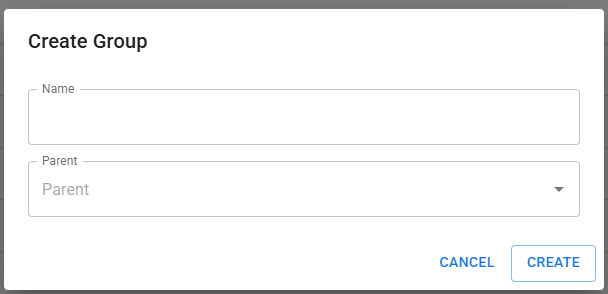
Add a new Group
Step 1: Click the Manage button
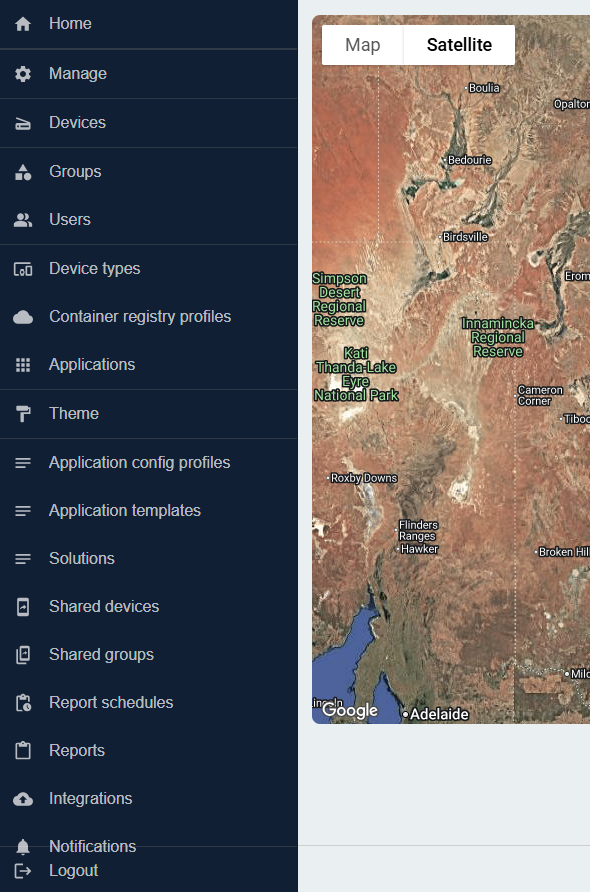
Starting on the Home Page.
Find the 'Manage' button on the control panel on the lefthand side of the screen. Click the Manage button to open the menu and access the options below it.
Step 2: Click the "Groups" button
Under "Manage" you will find the option "Groups". Click on Groups, the page will change.
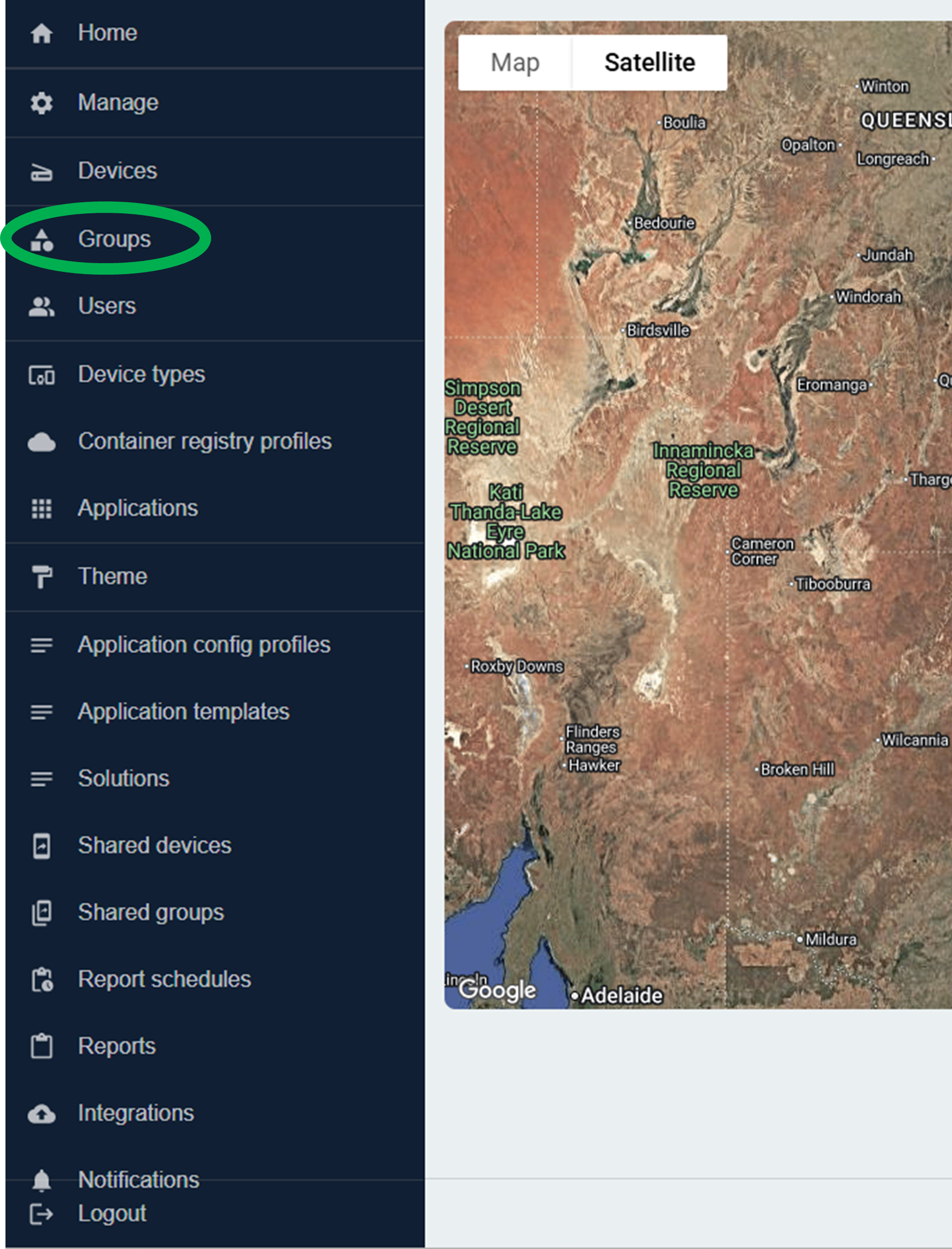
Step 3: Click the blue "+ Create" button
There will be a blue button on the top righthand corner titled "+ Create".
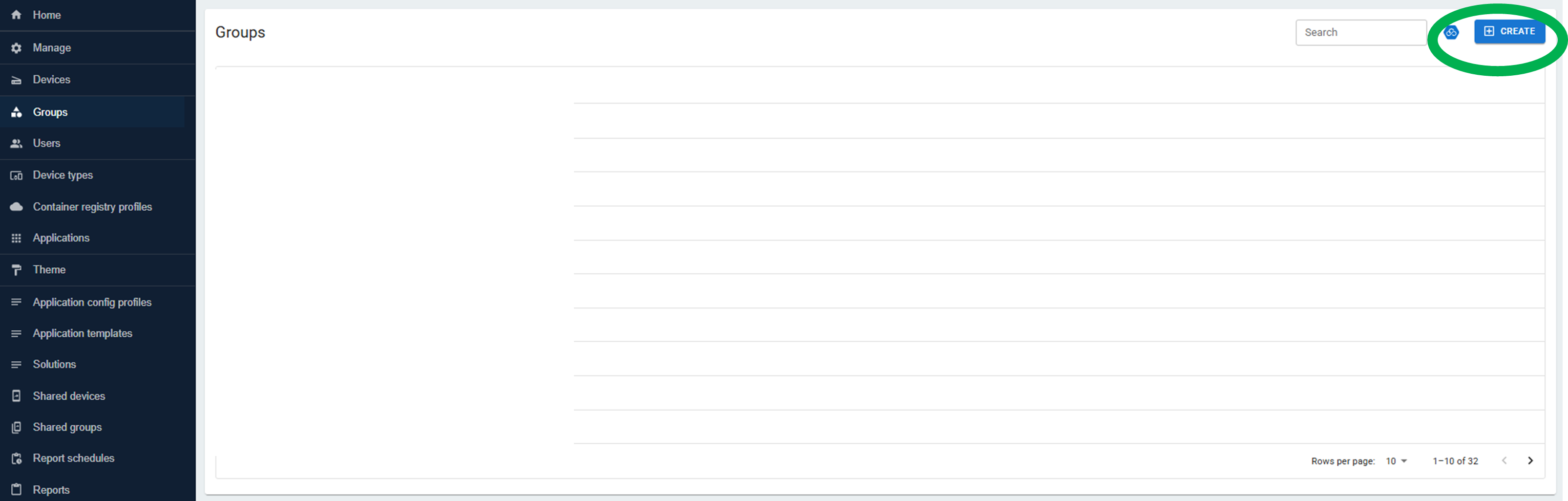
By clicking on the '+ Create' Button you are able to add/create new devices.

Step 4: Fill in the customer name
Fill in the customer name, and then optionally, you can add sub-groups to the customer by clicking on the Groups tab. For more information on groups, see the glossary.